So you would like to execute tests using Selenium against a Website. Below are 3 ways that you can execute Selenium for testing.
Selenium via Firefox.
- You must have Firefox installed.
- You will need the Selenium IDE add-on
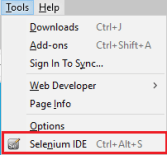
- After installing the add-on, you should restart FireFox and verify the Selenium tool installed properly.
- Now you can open the IDE from Firefox. From the IDE you can record a test case or load an existing test case\test suite to execute. (If creating a new test case, save as testcase.html)
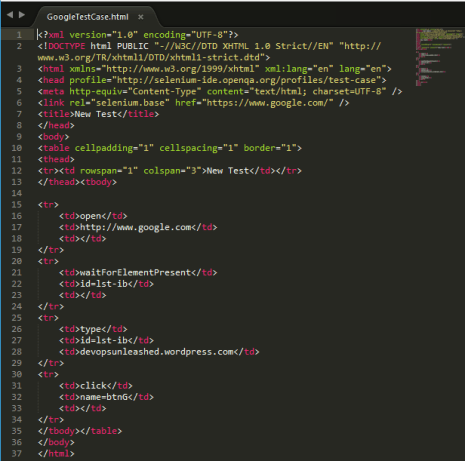
- Below is a simple test case for demonstration purposes. (control\shift\c to inspect element id’s on the given webpage)
Selenium via CMD.
- Before we run the test case from the command line, we must create a test suite html file that calls the test case html file. (Great link below)
- Now you will need to download the Selenium server jar (e.g. 2.45)
- If you are downloading the 3.0 Selenium jar, you will also need to download the latest geckodriver to support Firefox with Selenium 3. (exe must be in your path)
- With the files in place on your computer, you can execute the following command to launch the test case.
- java -jar selenium-server-standalone-2.53.1.jar
- -“htmlsuite” “*firefox”
- “http://www.google.com “GoogleTestSuite.html”
- GoogleTestSuiteResults.html
Selenium via Jenkins.
- If you know Jenkins, you know that you can launch commands above using the Windows batch command.
- You can also use the following plugin to configure\launch your test suite via Jenkins
- Finally, the above link contains information on an Ant task that can also be used in your build scripts to launch tests. (Haven’t tried it, but it looks cool)
 DevOps Unleashed