I really like VirtualBox for testing new ideas. However, I am not a huge fan of the VirtualBox preview console when working with Linux instances.
So I typically use Putty to ssh into the local instance as needed. Seems to work pretty good for me. Below are some configuration settings I needed to make to get things working.
- Download and install ssh client such as Putty.
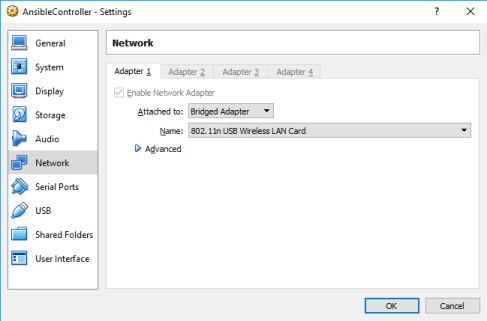
- Configure the appropriate network settings for your VM. I typically use Bridged Adapter as it seems to replicate my VM as a physical server closely. (From a networking perspective)
- Great link that reviews the networking mode options
- Once you have your VM running, you should be able to view your VM’s IP.
- ip addr show (Run this command for Red Hat)
- You should see something like this “inet 192.168.1.34” in the results. This is the IP you will use to ssh into the VM.
- In my case, I did not see any IP address initially. If I ran dhclient and then the above command, I would see an IP from my router.
- To help automate the DHCP process, I configured the network adapter to use DHCP and activate the network adapter on any reboot.
- /etc/sysconfig/network-scripts/ifcfg-enp0s3
- DEVICE=enp0s3
- BOOTPROTO=dhcp
- ONBOOT=yes
- /etc/sysconfig/network-scripts/ifcfg-enp0s3
Now I can use all my nice ssh clients with ease when working with VB.
 DevOps Unleashed